Data, Privacy & Reset
How SweepTag stores your data, what stays private, how to back it up, and how to erase everything and start over.
Table of Contents
Where Your Data Lives
SweepTag is offline-first. Everything you create is stored on your device:
- ✅ Your local collections, asset types, and every asset's field values
- ✅ Generated barcodes and barcode history
- ✅ Scan history
- ✅ All your settings (barcode, print, file structure, appearance, swipe actions)
- ✅ Your Lansweeper connection details (site list and access token)
- ✅ Your file-export sign-ins — the OneDrive / Google Drive tokens are held in the device keychain (see File Export below)
- ✅ The diagnostic activity log (kept on-device for 7 days; see Privacy)
There is no SweepTag account and no SweepTag cloud — none of this data is uploaded to a SweepTag server, and it all works with no internet connection.
The one deliberate exception is File Export: if you set up a file-export destination, SweepTag copies your generated barcode files out to the place you chose — a folder, an SMB share, iCloud Drive, OneDrive, or Google Drive. That is the only way data leaves the device, it only happens for the destination you configure, and you can remove it at any time (see Backing Up Your Data and File Export & your cloud accounts).
Privacy
- No account required. You never sign up or log in to SweepTag itself.
- Local collections never leave the device unless you export or share them.
- Lansweeper is read-only by default. SweepTag browses your assets and can write a single barcode value back to a custom field you choose — nothing else is changed in Lansweeper.
- Your Lansweeper access token (PAT) is stored on the device and used only to talk to Lansweeper's API. Removing the connection (or resetting the app) removes it from the device.
- The camera is used only while the Scan tab is open, to read barcodes. Scanned values are logged to your on-device scan history.
- The diagnostic activity log stays on the device. When you enable Debug mode (Settings › Advanced), SweepTag shows a log of exports, sign-ins, and API calls. Those entries are recorded on-device regardless of the toggle, are kept for 7 days (most recent 2,000), and have credentials stripped out before they are written — access tokens, refresh tokens, your Lansweeper PAT, and cloud client secrets never appear in the log. Nothing is sent anywhere; copying the log to share with support is always something you do.
File Export & your cloud accounts
- You choose the destination. File Export is off until you connect one in Settings › Integrations. Nothing is exported before that.
- Only barcode files are exported — the rendered code images and label PDFs (a managed
SweepTag/folder), never your Lansweeper token, your settings, or the raw collection data. - Cloud sign-ins grant scoped access. Connecting OneDrive lets SweepTag read and write files (
Files.ReadWrite); connecting Google Drive limits SweepTag to the files it creates (drive.file). Those OAuth tokens live in the device keychain (Keychain on iOS, Keystore on Android) and are cleared when you disconnect the destination or reset the app. - A network share (SMB) password is kept in the device keychain too, marked so it never travels in an encrypted device backup. It is never written to the app's settings, the export record, or the activity log — so a copied log stays safe to send to support. It is deleted when you change or remove the destination, or reset the app.
- Removing a destination stops future exports but does not delete files already written to your cloud — those are yours to keep or delete in OneDrive / Google Drive / Files.
Backing Up Your Data
Because your data lives only on this device, export anything important before switching devices or resetting.
| What | How | Format |
|---|---|---|
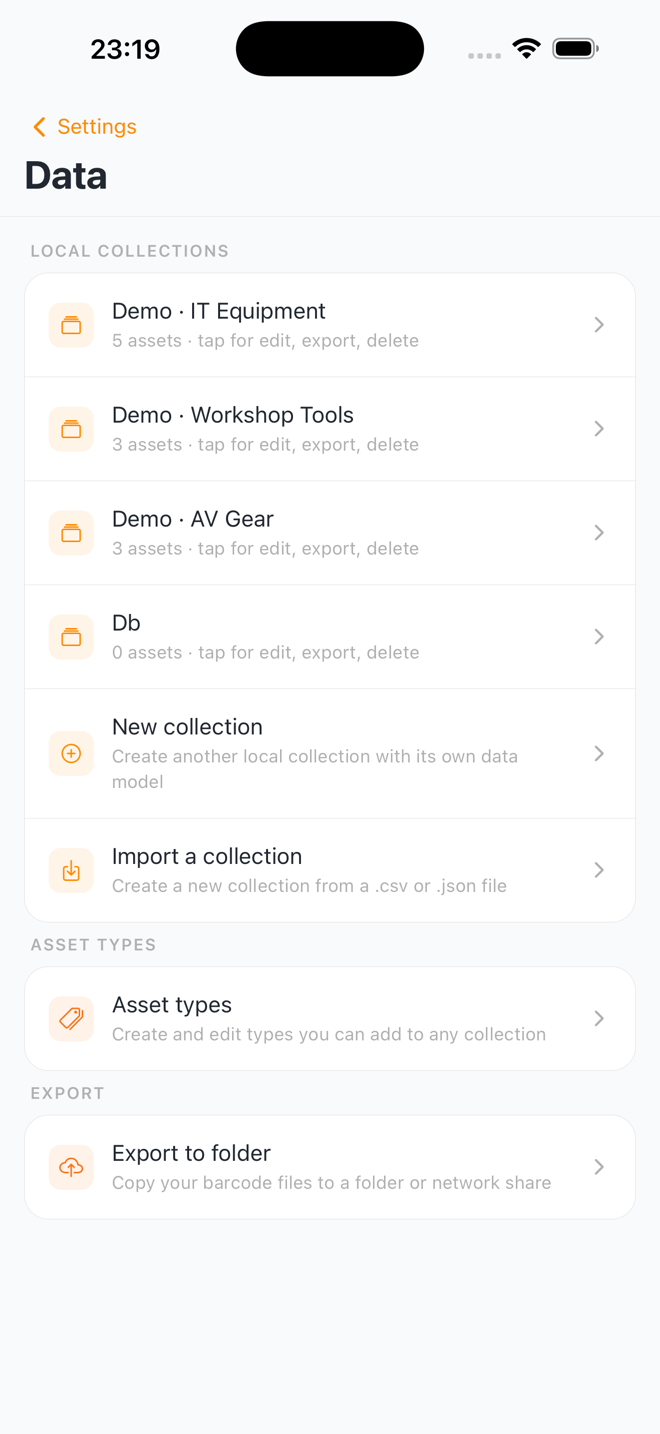
| A collection's assets | Settings › Data › tap the collection › Export CSV or Export JSON | CSV or JSON |
| Barcode image files | File Export: Settings › Integrations › choose a destination, then Run export › Export now (the format is set per source in the file structure settings) | PNG / JPEG / SVG / PDF |
| Scan history | Settings › Scan History (or Home › Recent scans › See all) › share icon › Export scan history › Export CSV or Export JSON | CSV or JSON |
- CSV is best for spreadsheets. For a collection with asset types, it includes a Type column and lines up same-purpose fields (e.g. "MAC address" and "Wi-Fi MAC address") into one column.
- JSON preserves the full structure, including asset types.
See Feature Guides › Exporting Data for step-by-step instructions.
Tip: There is no automatic collection backup or cross-device sync yet (see Limitations & Roadmap). For the barcode files themselves, File Export can mirror them automatically to a folder, iCloud, OneDrive, or Google Drive — see Feature Guides › Exporting to a Folder or Cloud. For collection data, export to CSV/JSON and keep it somewhere safe.
Resetting the App
A full reset erases everything and returns you to the first-run setup wizard. Use it for a genuinely clean slate — for example, before handing the device to someone else.
What gets erased:
- ❌ Every local collection and all of its assets
- ❌ All barcodes and barcode history
- ❌ Scan history
- ❌ Lansweeper connections (and the stored access token)
- ❌ File-export destinations and their sign-ins — the OneDrive token is deleted from the keychain and Google Drive is signed out
- ❌ The diagnostic activity log
- ❌ Every setting — barcode, print, file structure, appearance, swipe actions
Only SweepTag's own data is removed; nothing else on your device is touched. Files SweepTag already exported to a folder, iCloud, OneDrive, or Google Drive are not deleted — they stay in your cloud for you to keep or remove. (Because the on-device export record is erased, the next export after a reset re-writes every file fresh.)
Steps:
- Go to Settings › Advanced › Reset
- Tap "Reset app"
- Read the warning and tap Continue
- Type
deletein the box — this enables the final button - Tap Reset app
- SweepTag returns to the Welcome screen, ready to set up fresh (see Getting Started)
⚠️ This cannot be undone. Back up anything you want to keep first. The typed
deleteconfirmation exists so a reset can never happen by accident.
FAQ
Q: Does resetting delete my assets in Lansweeper?
A: No. Reset only clears data on this device, including the stored Lansweeper connection. Your assets in Lansweeper are untouched — reconnect any time to see them again.
Q: Can I undo a reset?
A: No. Once confirmed, the data is gone from the device. Export first if you might need it.
Q: How do I move my collections to a new phone?
A: Export each collection (CSV or JSON) from Settings › Data, then on the new device use Settings › Data › Import a collection to bring each file back in. There's no automatic transfer yet.
Q: Is my data encrypted?
A: Your collections, barcodes, and settings are stored in the app's private on-device storage, isolated from other apps by the operating system; there is no separate SweepTag-level encryption on that yet (see Limitations & Roadmap). Cloud and network-share secrets are held more strongly: your OneDrive/Google Drive sign-ins and your SMB share password live in the device keychain (Keychain on iOS, Keystore on Android), which is hardware-backed on most devices. Your Lansweeper token currently sits in the app's private storage rather than the keychain — moving it there is on the roadmap.
Q: What leaves my device, and when?
A: Only two things, and only if you set them up. Lansweeper: when connected, SweepTag queries your Lansweeper account and can write one barcode value back to a field you choose. File Export: when you connect a destination, SweepTag copies your barcode files to it — a folder, an SMB share, iCloud, OneDrive, or Google Drive (your own account). Nothing else is uploaded, and there is no SweepTag server or analytics.
Q: Does SweepTag work offline?
A: Yes — local collections, barcode generation, scanning, and printing all work with no connection. Only Lansweeper features need internet (and recently browsed Lansweeper data is cached for offline viewing).