Asset Types
Track different kinds of assets — computers, monitors, tools, cameras, even vehicles — in one collection, each with its own extra fields.
Table of Contents
- What Are Asset Types?
- Starter Kits
- Creating a Collection from a Kit
- Adding an Asset (Choosing a Type)
- Filtering the Asset List
- Adding and Managing Types
- The Type Library
- What a Field Is Used As
- Duplicate Serial Warning
- Turn a Choice Field into Types
- Reporting and Export
- Barcode Labels and Scanning
- Existing Collections
- FAQ
What Are Asset Types?
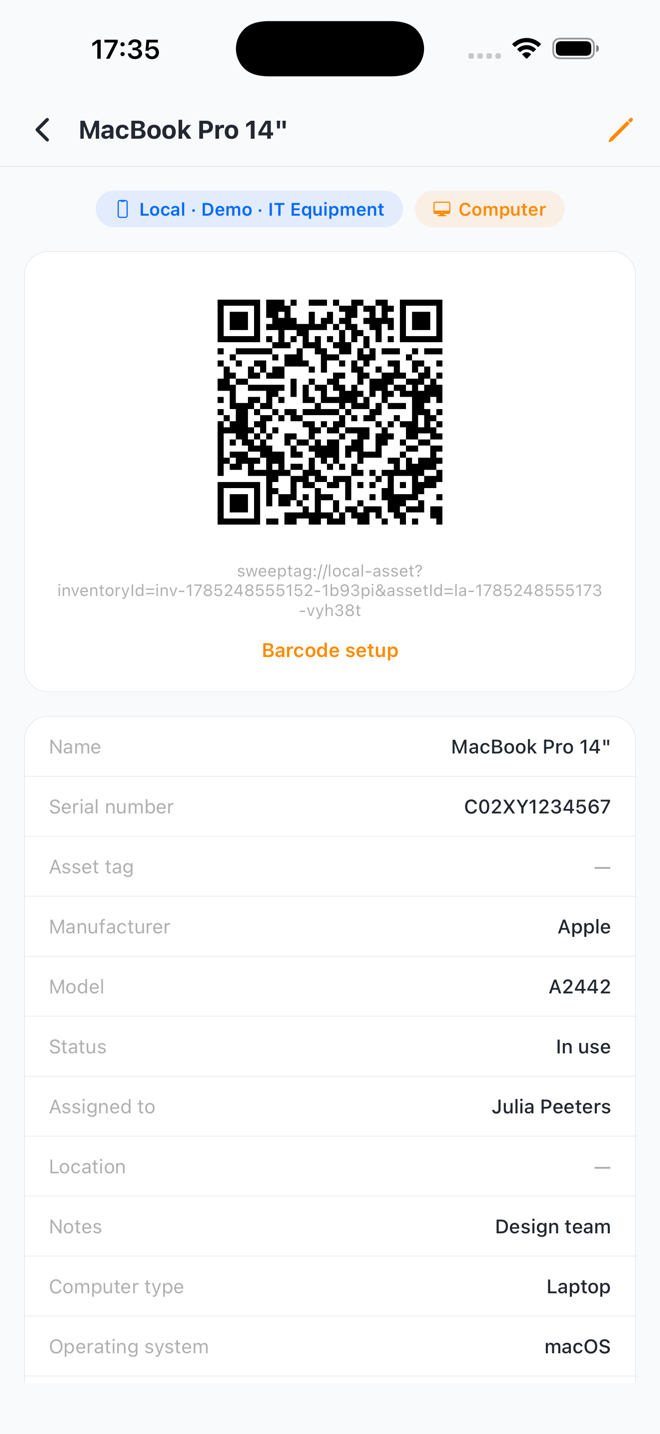
A local collection holds one pool of assets. Every asset has the collection's shared fields — Name, Serial number, Asset tag, Status, Location, and so on. On top of that, each asset has an asset type (Computer, Monitor, Printer, …), and each type adds its own small form section with a few extra fields.
In one sentence: a type is which extra questions the form asks.
Example (IT equipment collection):
- Every asset has: Name, Serial number, Asset tag, Status, Assigned to, Location
- A Computer additionally asks: Computer type, Operating system, Memory (RAM), MAC address, Hostname
- A Monitor additionally asks: Screen size (inches), Resolution, Connections
What types give you:
- ✅ One asset list for the whole collection, filterable per type
- ✅ Extra fields only where they make sense (no empty "Operating system" on a desk)
- ✅ Per-type counts on the dashboard, and a Type column in CSV exports
- ✅ Ready-made types from six starter kits and a type library
What types are NOT:
- ❌ Not separate collections — all assets share one list, one barcode set, one export
- ❌ Not a change to your barcodes or labels — labels use shared fields only
- ❌ Not a risk to your data — changing an asset's type never deletes anything
Starter Kits
When you create a local collection, you choose a starter kit. Each kit bundles a set of shared fields plus several ready-made asset types.
| Kit | Best for | Types included |
|---|---|---|
| IT equipment | Laptops, phones, printers — serials, purchase info, who has what | Computer, Monitor, Phone or tablet, Printer, Network device |
| Tools & machines | Workshop tools and machines — condition, location, service dates | Power tool, Hand tool, Machine, Safety equipment |
| AV gear | Cameras, audio, lighting — kit tracking with check-out info | Camera, Audio gear, Lighting, Grip & accessories |
| Furniture & office | Desks, chairs, storage — rooms, purchase info, condition | Desk or table, Seating, Storage & shelving, Office appliance |
| Facilities | Everything that keeps the building running — heating, fire safety, keys | Heating & cooling, Fire safety, Keys & access |
| Blank | Start from scratch with just a name field | None (add your own) |
You can rename, remove, or extend anything a kit gives you — kits are just a head start.
IT equipment
Shared fields (every asset): Name (required), Serial number, Asset tag, Manufacturer, Model, Status, Assigned to, Location, Notes, plus a Purchase info group (Purchase date, Purchase price, Warranty expiry).
| Type | Extra fields |
|---|---|
| Computer | Computer type, Operating system, Memory (RAM), MAC address, Hostname |
| Monitor | Screen size (inches), Resolution, Connections |
| Phone or tablet | Phone number, IMEI, Wi-Fi MAC address, Storage size |
| Printer | Printer type, IP address, MAC address, Toner or ink model |
| Network device | Device role, IP address, MAC address, Hostname, Number of ports |
Tools & machines
Shared fields (every asset): Name (required), Serial number, Asset tag, Brand, Location, Condition, Status, Notes, plus a Purchase info group (Purchase date, Purchase price) and a Maintenance group (Last serviced, Next service due, Service manual).
| Type | Extra fields |
|---|---|
| Power tool | Power source, Battery system, Comes with case |
| Hand tool | Size, Part of a set, Set name |
| Machine | Power supply, Year built, Hours used, Requires training |
| Safety equipment | Safety type, Size, Expiry date |
AV gear
Shared fields (every asset): Name (required), Serial number, Asset tag, Brand, Model, Condition, Status, Notes, plus a Purchase info group (Purchase date, Purchase price) and a Check-out group (Checked out to, Contact email, Due back).
| Type | Extra fields |
|---|---|
| Camera | Camera type, Lens mount, Memory card type, Shutter count |
| Audio gear | Audio type, Connector, Needs batteries |
| Lighting | Light type, Power (watts), Color temperature |
| Grip & accessories | Accessory type, Length or size, Quantity |
Furniture & office
Shared fields (every asset): Name (required), Asset tag, Room, Brand, Condition, Status, Notes, plus a Purchase info group (Purchase date, Purchase price, Supplier).
| Type | Extra fields |
|---|---|
| Desk or table | Width (cm), Height adjustable, Shape |
| Seating | Seating type, Adjustable, Color |
| Storage & shelving | Storage type, Lockable, Number of shelves or drawers |
| Office appliance | Appliance type, Serial number, Warranty expiry |
Facilities
Shared fields (every asset): Name (required), Asset tag, Location, Status (Working / Needs attention / In repair / Out of order), Notes, plus a Service & inspection group (Last inspection, Next inspection due, Service company, Service phone).
| Type | Extra fields |
|---|---|
| Heating & cooling | System type, Serial number, Year installed |
| Fire safety | Equipment type, Expiry date, Certificate number |
| Keys & access | Access type, Opens (doors or areas), Held by, Copies in circulation |
Blank
Shared fields: Name (required). No types — the form never shows a type picker until you add types yourself.
Creating a Collection from a Kit
Steps:
- Go to the Assets tab and tap New collection (or Settings › Data › New collection)
- Name your collection (e.g., "Office IT" or "Workshop Inventory")
- Under Start from a template, choose a starter kit (see the table above)
- Tap Continue and review the fields and types the kit set up
- Tap "Save collection"
Your collection is ready — shared fields and asset types included. Add assets right away (see below), or fine-tune fields and types anytime via Settings › Data › (your collection) › Edit data model.
Adding an Asset (Choosing a Type)
When your collection has more than one type, choosing a type is the first step of adding an asset.
Steps:
- Go to Assets tab → Select your collection
- Tap the "+" button
- Choose the asset type (e.g., Computer, Monitor, Printer)
- Fill in the fields:
- Shared fields first (Name is required)
- The type's own section below (e.g., Operating system and Memory for a Computer)
- Tap "Create asset"
Notes:
- Only one type? The picker is skipped — the form opens directly. A collection with a single type works exactly like it always has.
- Scanning? Assets created from a scan automatically get the collection's quick capture type, so scanning is never interrupted by a picker. See Barcode Labels and Scanning.
Changing an Asset's Type
Picked the wrong type, or repurposed an item? Change it anytime.
Steps:
- Open the asset and tap the pencil (edit) icon
- Tap Change next to the type's section header (e.g., COMPUTER DETAILS) → Choose the new type
- Tap "Save changes"
No data is ever deleted. Values you filled in for the old type move to a collapsed "Other saved fields" section on the asset. Switch the type back, and they return to their normal place.
Filtering the Asset List
The asset list stays a single list — filter chips at the top let you narrow it per type:
[All 27] [Computer 12] [Monitor 8] [Printer 7]
- Tap a chip to show only that type
- Tap "All" to show everything again
- Each chip shows the live count for that type
- A No type chip appears when some assets don't have a type yet
- To add a new type to the collection, see the next section
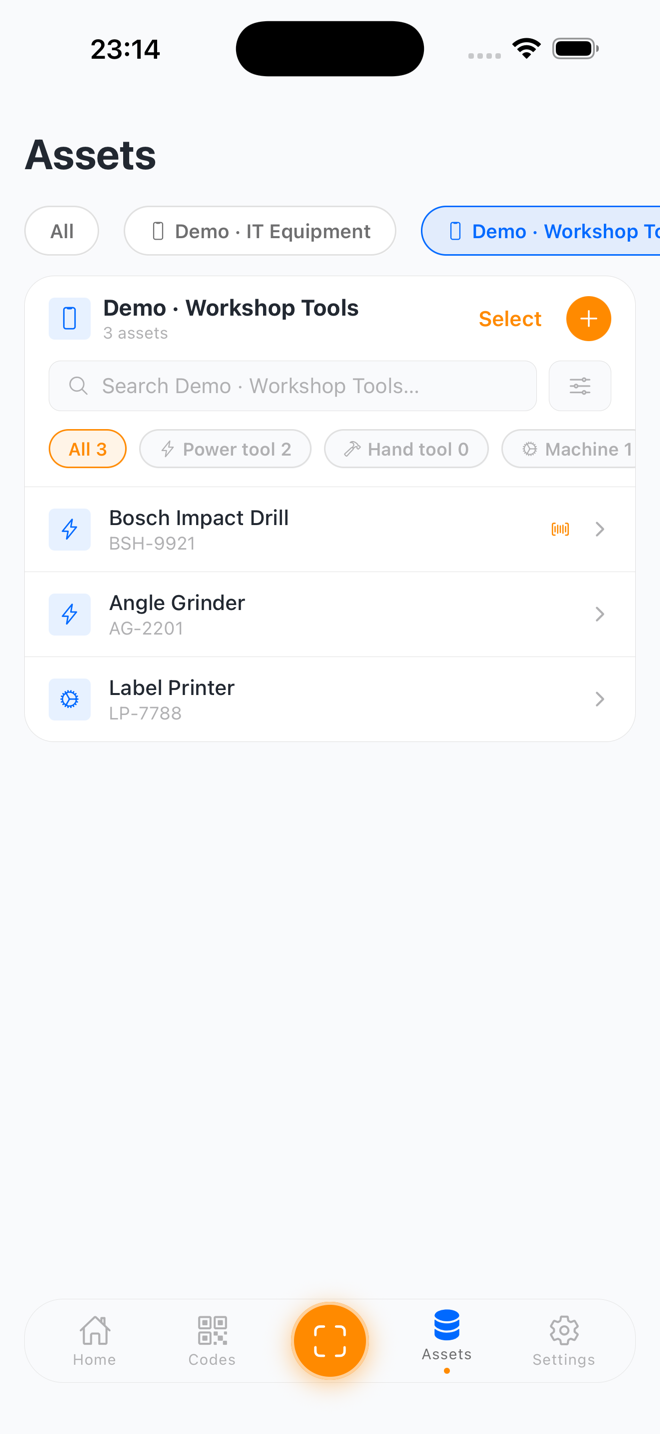
Search and sorting work as usual and combine with the active filter. Need more than a type filter? The sliders button next to the search box opens a Filter & sort sheet — sort by any field, or filter on barcodes, dates, and field values.
Adding and Managing Types
Add a Type
Steps:
- Go to Settings › Data and tap your collection
- Choose Edit data model
- In the asset-types section, tap:
- From library: Pick a prebuilt type (e.g., Vehicle, Server) — fields included
- New type: Name the type and add its fields (2–5 fields is the sweet spot)
- Tap "Save collection"
The new type immediately appears as a chip in the asset list and as an option when adding assets.
Edit a Type
Steps:
- Go to Settings › Data › tap your collection › Edit data model
- Tap the type you want to change
- Rename it, or add/edit/remove its fields (same field editor as shared fields)
- Tap "Save collection"
Note: Fields you add to a type only appear on assets of that type. Fields every asset should have belong in the shared fields instead.
Groups inside a type: a type's extra fields can be organized into groups too, just like shared fields — tap Group in the type's field list to add a section (e.g. a "Warranty" group on a Computer). Grouped fields render as their own section on the asset form.
Reordering fields
In the collection editor (Settings › Data › Edit data model), the shared-field list and each asset type's own field list support drag and drop: press the ≡ handle on a field and drag it to reorder, or drag it into or out of a group. You can also move a field between groups from the field editor's Group row. The type rows themselves reorder with their up/down chevrons. (A field's group and order also drive how the asset form and CSV export are laid out.)
The Type Library
The type library contains 24 prebuilt types across six areas. Any collection can adopt any of them — an IT collection can add Vehicle for the company van, a facilities collection can add Computer for the boiler-room PC.
| Area | Types |
|---|---|
| IT | Computer, Monitor, Phone or tablet, Printer, Network device, Wi-Fi network, Server |
| Workshop | Power tool, Hand tool, Machine, Safety equipment |
| AV | Camera, Audio gear, Lighting, Grip & accessories |
| Office | Desk or table, Seating, Storage & shelving, Office appliance |
| Facilities | Heating & cooling, Fire safety, Keys & access, Security camera & alarm |
| Vehicles | Vehicle |
Most library types match a starter kit's types exactly. Four exist only in the library:
- Server: Server role, Operating system, IP address, MAC address, Hostname
- Security camera & alarm: Device type, IP address, MAC address, Area covered
- Vehicle: Vehicle type, License plate, VIN (chassis number), Year, Mileage
- Wi-Fi network: Network name (SSID), Security, Password, Hidden network — its barcode is a Wi-Fi join code (see Wi-Fi networks)
Managing your own types (Settings › Data › Asset types)
You can build your own library of asset types and use them in any collection.
Location: Settings › Data › Asset types
- Create a type from scratch — tap New asset type, give it a name, pick an icon and a group/area, and add its extra fields (name, type, options). Your type then appears whenever you add types to a collection.
- Edit a built-in type — tap any type to change its name, icon, or fields. Your edit is saved as your version; it applies to future uses and doesn't change collections that already use it.
- Hide or delete — hide a built-in you never use (you can reset it later), or delete a type you created.
How reuse works: adding a type to a collection copies it in, so each collection can then tweak its own copy independently. Editing a type in this manager changes what new additions look like — it doesn't retro-change collections already using that type.
What a Field Is Used As
When you edit a field, an optional "Used as" row tells SweepTag what the field means — that this "S/N" field holds a serial number, or that "Due for replacement" is a warranty expiry date. SweepTag pre-suggests it from the field name; you can change or clear it anytime.
Why set it? Fields used as the same thing work together across types:
- One report, many field names. All warranty fields roll into one "warranty ending soon" view — even when a Computer calls it "Warranty expiry" and another type names it differently.
- Duplicate warnings. Serial number fields power the duplicate serial warning across the whole collection.
- Aligned exports. CSV columns line up across types (see Reporting and Export).
- Future-ready. Fields used as MAC address, IP address, or hostname will let a future network discovery feature match found devices to your assets.
| Used as | What SweepTag does with it |
|---|---|
| Name | The asset's display name in lists, labels, and file names |
| Serial number | Duplicate warning while typing; one serial column in exports (also fits VIN on vehicles) |
| MAC address | Network identity; future network discovery matching |
| Asset tag | Your own sticker or label number (also fits license plates) |
| Brand / manufacturer | Brand overviews across all types |
| Model | Model overviews across all types |
| Status | In use / in storage / in repair counts across the whole collection |
| Condition | Wear-and-tear overviews and replacement planning |
| Location | Where-is-what grouping and filtering |
| Assigned to | Who-has-what and check-out views |
| Purchase date | Asset age and spend-over-time reports |
| Purchase price | Total inventory value and per-type spend |
| Warranty expiry | "Warranty ending soon" lists |
| IP address | Future network discovery |
| Hostname | Network name; future network discovery |
| Notes | Free text — deliberately left out of reports and duplicate checks |
Where to set it: Settings › Data › tap your collection › Edit data model → tap a field → "Used as" row. Kit fields come with it already set. It never appears on the asset form — your team only sees the field names you chose.
Duplicate Serial Warning
Type a serial number that already exists in the collection, and SweepTag warns you while you type — before you save a duplicate.
- Works across all types in the collection: it catches a match whether the other asset is a Computer, a Printer, or a Vehicle (a VIN field counts as a serial number)
- Works on any field used as a serial number, whatever the field is named
- It's a warning, not a block — you can still save if the duplicate is intentional
Tip: Tap the warning to jump to the existing asset and check whether you're about to re-enter it.
Unique Identifiers
A duplicate-serial warning (above) is a soft nudge you can override. A unique identifier is a hard rule: no two assets in the collection may share that field's value, and SweepTag blocks the save if they would.
- Turn it on when editing a field: Settings › Data › your collection › Edit data model → tap a field → Unique identifier. A field that's a unique identifier shows a small Unique ID tag in the field list.
- Name is a unique identifier by default — so out of the box, two assets can't have the same name. Uncheck it on the Name field if your assets don't need unique names.
- An asset can have several unique identifiers — mark Serial number and Asset tag, for example, and each is enforced independently.
- A unique identifier can live on an asset type, not just the shared fields — so a "Computer" can require a unique Hostname that a "Monitor" doesn't have.
- Empty values don't collide — an unfilled unique field never blocks a save.
- Unique identifiers can't be bulk-edited — in Bulk edit, these fields are grayed out and marked "this needs to be unique and can not be bulk edited", since applying one value to many assets would collide.
- The block applies on create and on edit. Editing an unrelated field on an asset never trips the rule; only actually entering a value another asset already uses does. (If two assets already shared a value from before you turned this on, they stay — you just can't make a new clash.)
When a save is blocked, SweepTag lists exactly which field(s) collide so you can fix the value.
Turn a Choice Field into Types
Already sorting assets with a choice field like "Category"? Convert its options into real asset types in one tap.
Example: An AV collection has a Category field with options Camera / Audio / Lighting. Converting it creates a Camera type, an Audio type, and a Lighting type — and assigns every asset to the type matching its current Category value.
Steps:
- Go to Settings › Data › tap your collection › Edit data model
- Scroll to the "Turn a choice field into types" card — it lists each eligible choice field as a button (the card appears only while the collection has no asset types yet)
- Tap the field you want to convert (e.g., "Category → Camera · Audio · Lighting")
- Review the confirmation: it names the types that will be created and shows how many assets will be assigned in total (assets with no value stay under "No type")
- Tap "Convert" — or "Convert, keep field" to keep the original choice field alongside the new types
All assets are assigned in bulk by their current value. From here you can add extra fields to each new type (e.g., give Camera a "Lens mount" field).
Reporting and Export
Asset types flow through everything downstream:
Dashboard Counts
The Home tab shows asset counts per type for each collection — 12 Computers, 8 Monitors, 7 Printers — alongside the totals you already know.
Barcode File Tree
The virtual file tree in the Codes tab can group barcodes by asset type:
- Go to Settings › Barcode and tap your collection under Collection configurations
- Under Folders, choose Asset type
- Barcodes reorganize into one folder per type (
Computer/,Monitor/,Printer/)
CSV Export
Exporting a collection (Settings › Data › tap the collection › Export CSV) now includes:
- A Type column for every asset
- Each type's extra fields as columns (empty for assets of other types)
- Aligned columns for fields used as the same thing: a Computer's "MAC address" and a Phone's "Wi-Fi MAC address" land in one MAC address column, so sorting and filtering in a spreadsheet just works
Barcode Labels and Scanning
Labels Stay Uniform
Barcode labels use shared fields only. Every label in a collection has the same layout, no matter which type the asset is — so a printed sheet of mixed Computers, Monitors, and Printers looks consistent, and label templates never break when you add a type.
Quick Capture Type for Scanning
When a scan creates a new asset (e.g., scanning an unknown barcode and saving it), SweepTag assigns the collection's quick capture type automatically — no picker, no interruption to your scanning flow.
To choose the quick capture type:
- Go to Settings › Data › tap your collection › Edit data model
- Tap "Quick capture type"
- Pick the type new scans should get (e.g., "Computer" during an IT intake day)
- Tap "Save collection"
Tip: Re-type quick-captured assets later in bulk — filter by the quick capture type, then edit the stragglers. Nothing is lost when you change a type.
Existing Collections
Nothing changes until you want it to.
- Collections created before asset types keep working unchanged — they behave as single-type collections, so the type picker never appears
- Your existing fields are the collection's shared fields
- Add a second type whenever you're ready, via Settings › Data › your collection › Edit data model
- Your existing assets, barcodes, and labels are untouched
FAQ
Q: Do I have to use asset types?
A: No. A collection with one type (or none) works exactly as before — no picker, no chips. Types are there when one field list stops fitting everything you track.
Q: Can one asset have two types?
A: No, each asset has exactly one type. Anything several types have in common belongs in the shared fields. If an asset changes purpose, change its type — no data is lost.
Q: What happens to filled-in fields when I change an asset's type?
A: They're kept, never deleted. Values from the old type appear in a collapsed "Other saved fields" section on the asset. Switch back to the old type and they return to their normal place.
Q: Do asset types change my barcodes or labels?
A: No. Barcodes work exactly as before, and labels use shared fields only — every label in a collection keeps the same layout.
Q: Can I add a type my kit doesn't include?
A: Yes. Go to Settings › Data › tap your collection › Edit data model, then tap From library to pick from the type library (e.g., add Vehicle to an IT collection) or New type to create your own type with its own fields.
Q: Is the "Used as" setting required?
A: No, it's optional — and SweepTag pre-suggests it from the field name. Setting it unlocks cross-type reports, the duplicate serial warning, and aligned CSV columns.
Q: Does the duplicate serial warning stop me from saving?
A: No. It warns you while typing so you can check the existing asset, but you decide — intentional duplicates can still be saved.
Q: How is a type different from a separate collection?
A: Types share one asset list, one export, one barcode set, and one label layout — with filtering per type. Separate collections are fully isolated from each other. Rule of thumb: same team, same labels, same list → types; different team or fully separate inventory → another collection.
Q: Will my existing collections be converted automatically?
A: No conversion happens. Existing collections behave as single-type until you add types yourself.
Wi-Fi networks (a type whose barcode is a join code)
Most types produce a barcode that links back to the asset. A type can instead produce a Wi-Fi join code — the standard WIFI:… QR your phone's camera reads to offer "join this network."
- Add the built-in Wi-Fi network type (manage it under Settings › Data › Asset types, or add it to a collection via Edit data model › From library). It comes with Network name (SSID), Security, Password, and Hidden network fields.
- Each asset of that type becomes one network; its barcode is built from those fields. Fill in the SSID (and password), generate the barcode, and print or share it — scanning it with a phone camera offers a one-tap join.
- You can also turn any custom type into a Wi-Fi type: open it and set Barcode → Wi-Fi join code, then give it SSID / Password / Security / Hidden fields.
- The choice is per type, so a laptop and a router in the same collection still get their normal asset-link codes. Wi-Fi codes are always QR (they can't ride Code 128).
Heads-up: a Wi-Fi QR contains the password in plain text — anyone who scans the printed label can join. Best for guest networks.
No asset needed? For a quick guest-Wi-Fi card, a link, or a bit of text, open the Codes tab and tap Create › Standalone code — you get a code without creating an asset.
See also: Feature Guides › Local Collections · Configuration Reference › Local Collection Settings · FAQ